


مشخصات مقاله
-
2005
-
0.0
-
5164
-
0
-
0
Notification Manager در اندروید
استفاده از notification manager در اندروید/پیاده سازی
notification
این مبحث به نحوه ی استفاده از notification manager در اندروید می پردازد. پروژه ی آموزش حاضر در محیط برنامه نویسی Android studio نوشته شده و مبتنی بر ویرایش 5.0 سیستم عامل اندروید می باشد.
Notification manager
شرح مفهوم notification manager
در سیستم عامل اندروید توسعه دهنده قادر است با استفاده از notification هشدارهای سیستمی یا مربوط به اپلیکیشن را به کاربر نمایش دهد. اندروید به شما این امکان را می دهد تا notification ها را داخل titlebar اپلیکیشن خود نمایش دهید. کاربر می تواند بر روی notification تپ کرده، آن را باز نماید. سپس با انتخاب notification، یک activity و صفحه ی جدید را به اجرا در بیاورد. از آنجایی که notification ها کیفیت تجربه ی کاربری را پایین آورده و کمی آزار دهنده هستند، کاربر این اجازه را دارد که notification های اپلیکیشن مربوطه را غیرفعال نماید. برای نیل به این هدف، کافی است کاربر به بخش تنظیمات/Settings اپلیکیشن در دستگاه اندروید مراجعه کند. پس از انتخاب گزینه Apps در Settings، کاربر اپلیکیشنی که می خواهد notification های آن را غیر فعال کند، انتخاب نموده و تیک چک باکس show notifications اپلیکیشن مرتبط را برمی دارد.

تنظیم و مقدار دهی notification ها
برای ساخت و نمایش notification در اندروید از کلاس Notification استفاده می شود.
نحوه ی ساخت notification در اندروید: به منظور مقداردهی و تنظیم notification از کلاس NotificationManager استفاده می شود. این کلاس با فراخوانی متد getSystemService() از Context قابل بازیابی می باشد.
NotificationManager notificationManager = (NotificationManager)
        getSystemService(NOTIFICATION_SERVICE);
Notification.Builder یک interface جهت ساخت و مقداردهی آبجکت های لازم از کلاس Notification در اختیار توسعه دهنده قرار می دهد.
می توانید با استفاده از آبجکت PendingIntent، عملیاتی که پس از انتخاب notification باید اجرا شود را تعیین نمایید.
Notification.Builder به شما این امکان را می دهد که تا 3 کنترل دکمه با رفتار (action) دلخواه به notification اضافه نمایید.
// prepare intent which is triggered if the
// notification is selected
Intent intent = new Intent(this, NotificationReceiver.class);
// use System.currentTimeMillis() to have a unique ID for the pending intent
PendingIntent pIntent = PendingIntent.getActivity(this, (int) System.currentTimeMillis(), intent, 0);
// build notification
// the addAction re-use the same intent to keep the example short
Notification n  = new Notification.Builder(this)
                                .setContentTitle("New mail from " + "test@gmail.com")
                                .setContentText("Subject")
                                .setSmallIcon(R.drawable.icon)
                                .setContentIntent(pIntent)
                                .setAutoCancel(true)
                                .addAction(R.drawable.icon, "Call", pIntent)
                                .addAction(R.drawable.icon, "More", pIntent)
                                .addAction(R.drawable.icon, "And more", pIntent).build();
NotificationManager notificationManager =
        (NotificationManager) getSystemService(NOTIFICATION_SERVICE);
notificationManager.notify(0, n);

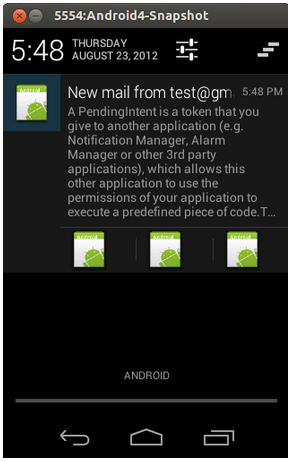
ویرایش 4.1 اندروید به کاربران این امکان را می دهد تا notification ها را باز کرده و جزئیات بیشتری را مشاهده نمایند. در واقع از ورژن ذکر شده به بعد علاوه بر نمای (view) معمولی notification، نمای بزرگی نیز تعبیه شده که به هنگام باز شدن notification فراخوانی می شود. برای طراحی ظاهر notification، سه style قابل گزینش می باشد: 1. big picture style 2. big text style 3. Inbox style. کد زیر استفاده از متد BigTextStyle() را به نمایش می گذارد که تا 256 dp از کل نمایشگر را به notification اختصاص می دهد.
String longText = "...";
Notification noti = new Notification.Builder(this).
.....
.setStyle(new Notification.BigTextStyle().bigText(longText))
لغو کردن notification ها
کاربر می تواند تمامی notification ها را لغو کند. چنانچه توسعه دهنده notification را بر روی auto-cancel تنظیم کرده باشد، آنگاه به هنگام انتخاب کاربر، notification از نمایشگر حذف می شود.
می توانید ID یا شناسه ی منحصربفرد Notification را به عنوان پارامتر به متد cancel() پاس داده و آن را بر روی آبجکت NotificationManager فراخوانی نمایید. با فراخوانی متد cancelAll()، تمامی notification هایی که قبلا صادر کرده بودید، حذف می شوند.
تمرین: NotificationManager
یک پروژه و activity جدید به ترتیب به نام های de.vogella.android.notificationmanager و CreateNotificationActivity ایجاد نمایید. activity برای تنظیم ظاهر خود بایستی فایل main.xml را فراخوانی کند.
<?xml version="1.0" encoding="utf-8" ?>
<linearlayout xmlns:android="http://schemas.android.com/apk/res/android"
              android:layout_width="match_parent"
              android:layout_height="match_parent"
              android:orientation="vertical">
                    <button android:id="@+id/button1"
                            android:layout_width="match_parent"
                            android:layout_height="match_parent"
                            android:onclick="createNotification"
                            android:text="Create Notification">
    </button>
</linearlayout>
فایل result.xml را با محتوای زیر ایجاد نمایید.
<?xml version="1.0" encoding="utf-8" ?>
<linearlayout xmlns:android="http://schemas.android.com/apk/res/android"
              android:layout_width="match_parent"
              android:layout_height="match_parent">
                    <textview android:id="@+id/textView1"
                              android:layout_width="wrap_content"
                              android:layout_height="wrap_content"
                              android:text="This is the result activity opened from the notification">
    </textview>
</linearlayout>
اکنون کلاس activity دیگری به نام NotificationReceiverActivity ایجاد کرده و بدنه ی آن را به صورت زیر تنظیم نمایید. به یاد داشته باشید که activity مربوطه را حتما داخل فایل تنظیمات AndroidManfest.mf تعریف کنید.
package de.vogella.android.notificationmanager;
import android.app.Activity;
import android.os.Bundle;
public class NotificationReceiverActivity extends Activity {
        @Override
        protected void onCreate(Bundle savedInstanceState) {
                super.onCreate(savedInstanceState);
                setContentView(R.layout.result);
        }
}
پیاده سازی کلاس CreateNotificationActivity را به صورت زیر ویرایش نمایید.
package de.vogella.android.notificationmanager;
import android.app.Activity;
import android.app.Notification;
import android.app.NotificationManager;
import android.app.PendingIntent;
import android.content.Intent;
import android.os.Bundle;
import android.view.View;
public class CreateNotificationActivity extends Activity {
        @Override
        public void onCreate(Bundle savedInstanceState) {
                super.onCreate(savedInstanceState);
                setContentView(R.layout.main);
        }
        public void createNotification(View view) {
                // Prepare intent which is triggered if the
                // notification is selected
                Intent intent = new Intent(this, NotificationReceiverActivity.class);
                PendingIntent pIntent = PendingIntent.getActivity(this, (int) System.currentTimeMillis(), intent, 0);
                // Build notification
                // Actions are just fake
                Notification noti = new Notification.Builder(this)
                                .setContentTitle("New mail from " + "test@gmail.com")
                                .setContentText("Subject").setSmallIcon(R.drawable.icon)
                                .setContentIntent(pIntent)
                                .addAction(R.drawable.icon, "Call", pIntent)
                                .addAction(R.drawable.icon, "More", pIntent)
                                .addAction(R.drawable.icon, "And more", pIntent).build();
                NotificationManager notificationManager = (NotificationManager) getSystemService(NOTIFICATION_SERVICE);
                // hide the notification after its selected
                noti.flags |= Notification.FLAG_AUTO_CANCEL;
                notificationManager.notify(0, noti);
        }
}
اپلیکیشن خود را اجرا کرده و کنترل دکمه را فشار دهید. یک notification جدید ایجاد شده که با انتخاب آن، activity و پنجره ی جدید در نمایشگر باز می شود.